How to Connect Slack with Leavly

Connecting Slack with Leavly takes about two minutes and one admin. After that, managers approve or reject leave right from a Slack message, employees find out in Slack the moment it’s decided, and a channel of your choice gets a daily list of who’s out.
I’m Dervis – I built Leavly. The most common thing I heard from teams was simple: requests sat in someone’s inbox for days, while everyone was in Slack all day anyway. So now the request comes to the manager in Slack, with the buttons right there.

Included on every plan – start your 14-day free trial
What the Slack integration does
Approve or reject leave in Slack
Every new request goes to the people who can approve it as a Slack direct message: who asked, the leave type, the dates, how many working days, and their note. Underneath are three buttons: Approve, Reject and Open in Leavly.
Employees hear back in Slack
As soon as a request is decided, the employee gets a Slack message telling them it was approved or rejected, and by whom. The usual email still goes out too.
A daily “who’s out today” post
Every weekday morning, Leavly posts who’s off today to the channel you pick, at the hour you choose, in your company’s time zone. On quiet days it simply says everyone’s in.
One thing to know: employees still request time off in Leavly. Slack is where the approvals and updates happen.
Before you start
- You’re an admin or HR admin in Leavly. They’re the only roles that see the Integrations page.
- You can add apps to your Slack workspace – or ask whoever runs your Slack.
- Emails match. Leavly finds people in Slack by email, so each person’s Slack email should be the same as their Leavly email. Check your managers first – they’re the ones approving.
- Pick a channel for the daily post. A dedicated one like #leave-notifications keeps #general quiet.
Haven’t set up Leavly yet? Start with the setup guide, then come back here.
How to connect Slack with Leavly, step by step
1. Open Integrations
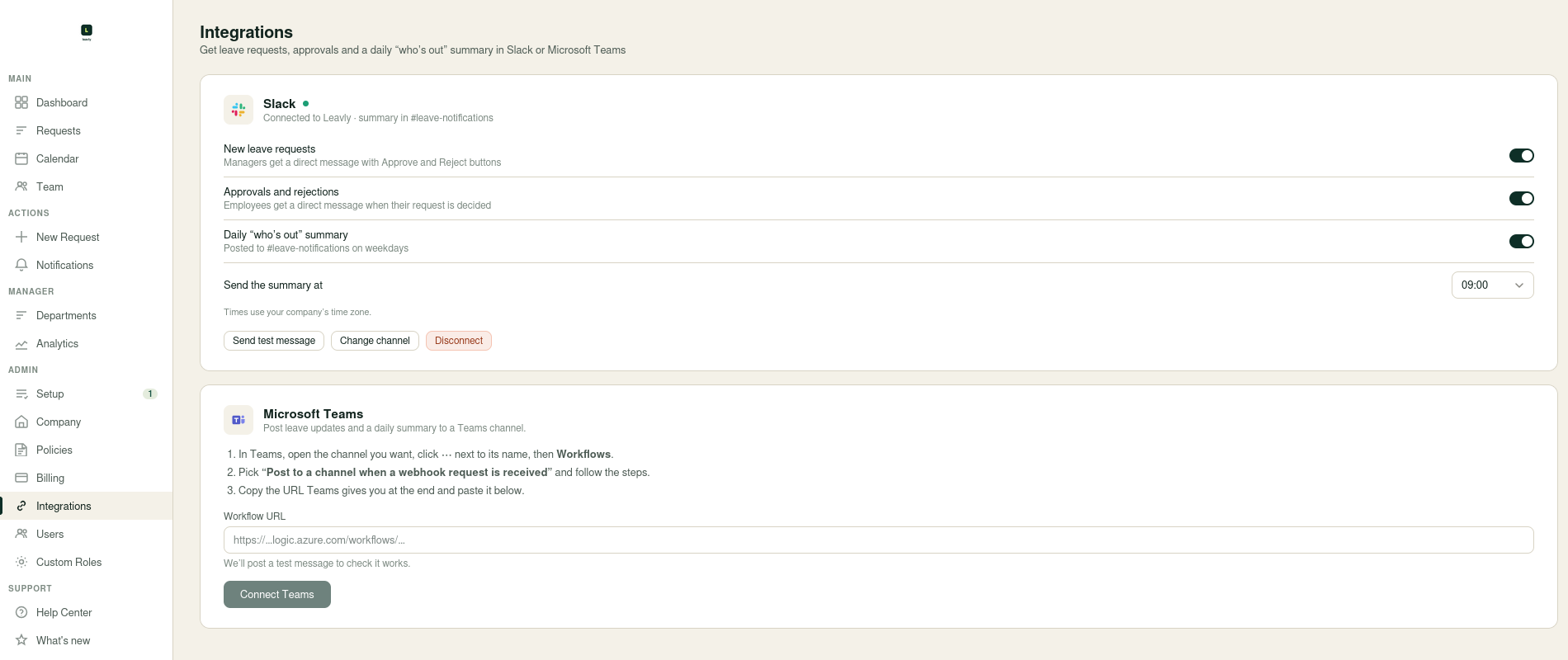
In Leavly, click Integrations in the sidebar, under Admin. You’ll see a card for Slack and one for Microsoft Teams.
2. Click “Add to Slack”
Slack opens its own permission screen. Leavly only asks for what it needs: to send messages, to send direct messages to people, to find people by their email, and to post to one channel.
3. Pick a channel and click Allow
The channel you pick here is only for the daily “who’s out” post. Approval messages always go to people privately, never to the channel.
4. Check the settings
You’re sent back to Leavly, and the Slack card now shows your workspace and channel. Three switches control what gets sent:
- New leave requests – managers get a direct message with Approve and Reject buttons.
- Approvals and rejections – employees get a direct message when their request is decided.
- Daily “who’s out” summary – posted to your channel on weekdays, at the time you set under Send the summary at.
5. Send a test message
Click Send test message and check that it shows up in your channel. Then try the whole loop: ask a colleague to request a day off (or request one yourself, if someone else can approve it), approve it from Slack, and watch both messages update.
What your team sees
Employees request time off as usual
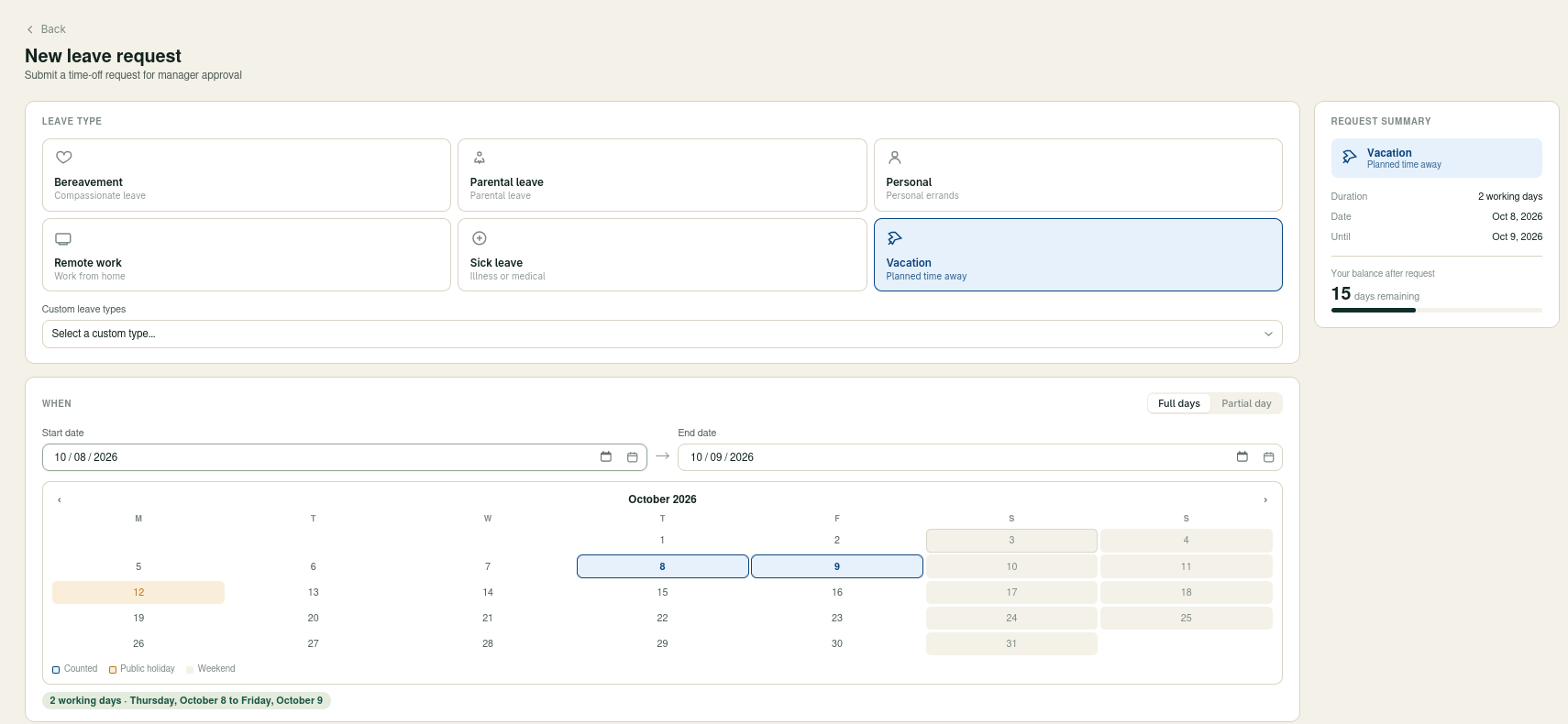
Nothing changes for employees: they pick a leave type and dates on New Request, add a note if they like, and submit. The moment they do, the approval message lands in Slack.
Managers decide with one click
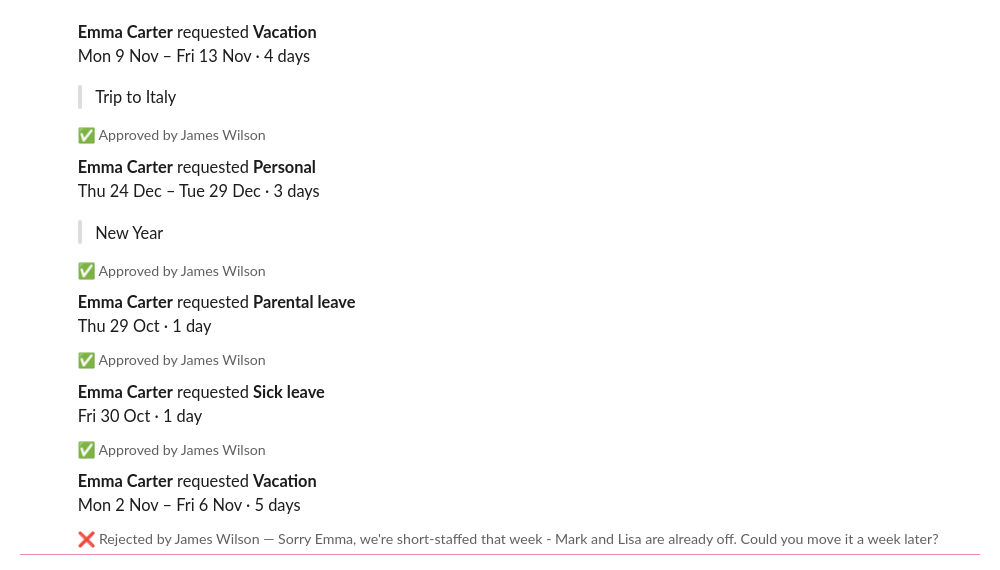
Approve does exactly what it says. Reject opens a small box where the manager can add a reason, which the employee sees. Once a request is decided, the buttons disappear and the message shows the result – “Approved by James Wilson”, or the rejection with its reason.
If several people can approve the same request, everyone’s copy updates the moment one of them decides, so nobody approves something twice. If the employee edits or cancels the request, the messages update too.
Is it secure?
- Every button click is checked to make sure it really came from Slack.
- Leavly checks the person’s current role when they click. If someone lost manager rights yesterday, an old Slack message won’t let them approve today.
- Nobody can approve their own request, in Slack or anywhere else.
- Slack access keys are stored encrypted.
- You can disconnect at any time. Removing the app from Slack disconnects it in Leavly too.
If something doesn’t work
- A manager didn’t get a message. Usually their Slack email doesn’t match their Leavly email. Also check that New leave requests is switched on, and that they can approve that person’s leave.
- “You don’t have permission to approve or reject leave in Leavly.” Their role in Leavly doesn’t allow approving. Change it under Users.
- “This request was already handled.” Someone else got there first – the message shows who.
- The daily post comes at the wrong time. Check your company’s time zone in Company settings and the hour on the Integrations page.
- You want a different channel. Click Change channel and pick a new one.
Still stuck? Send us a note – we read and answer every message.
Using Microsoft Teams instead?
Teams works too. On the same Integrations page, paste a link from a Teams workflow and Leavly posts new requests, decisions and the daily summary to a Teams channel. The steps are right there on the page, and the Help Center has more.
Get leave approvals into Slack
Slack is included on Essentials and Pro, and every plan starts with a 14-day free trial. Already using Leavly? Log in and open Integrations.