Free Leave Tracker Template for Excel & Google Sheets
Type the dates, and the spreadsheet counts the working days, keeps sick leave separate, and shows everyone’s remaining balance.
100% free · no sign-up or email · works in Excel, Google Sheets & LibreOffice

If you manage a small team, you don’t need software to track time off - you need a spreadsheet that does the counting for you. This is a simple, ready-to-use employee leave tracker for Excel and Google Sheets: every employee gets their own “leave card” tab with live totals for annual leave, sick days, and remaining balances.
I built it for teams that track leave by hand, and I keep improving it based on what readers tell me they need. It’s completely free - no sign-up, no email required - and in this post I’ll walk through what’s inside and exactly how to use it, step by step.
What’s inside
- Days count themselvesType the first day and the return date - weekends and public holidays are skipped automatically.
- Sick leave kept separateA dropdown for the leave type; only annual leave comes out of the allowance.
- Half days and hoursLog a 2-hour appointment or a half day and it converts to days for you.
- Whole team on one pageA Team overview tab shows everyone's remaining days side by side.
- Carry-over built inUnused days from last year go in their own field.
- No sign-up, no macrosWorks in Excel, Google Sheets and LibreOffice.
One tab per employee - a personal leave card
The idea behind the template is deliberately simple: instead of one giant grid for the whole company, every employee gets their own tab - a personal leave card. That keeps each person’s history in one place and makes the workbook easy to read even after a full year of entries.
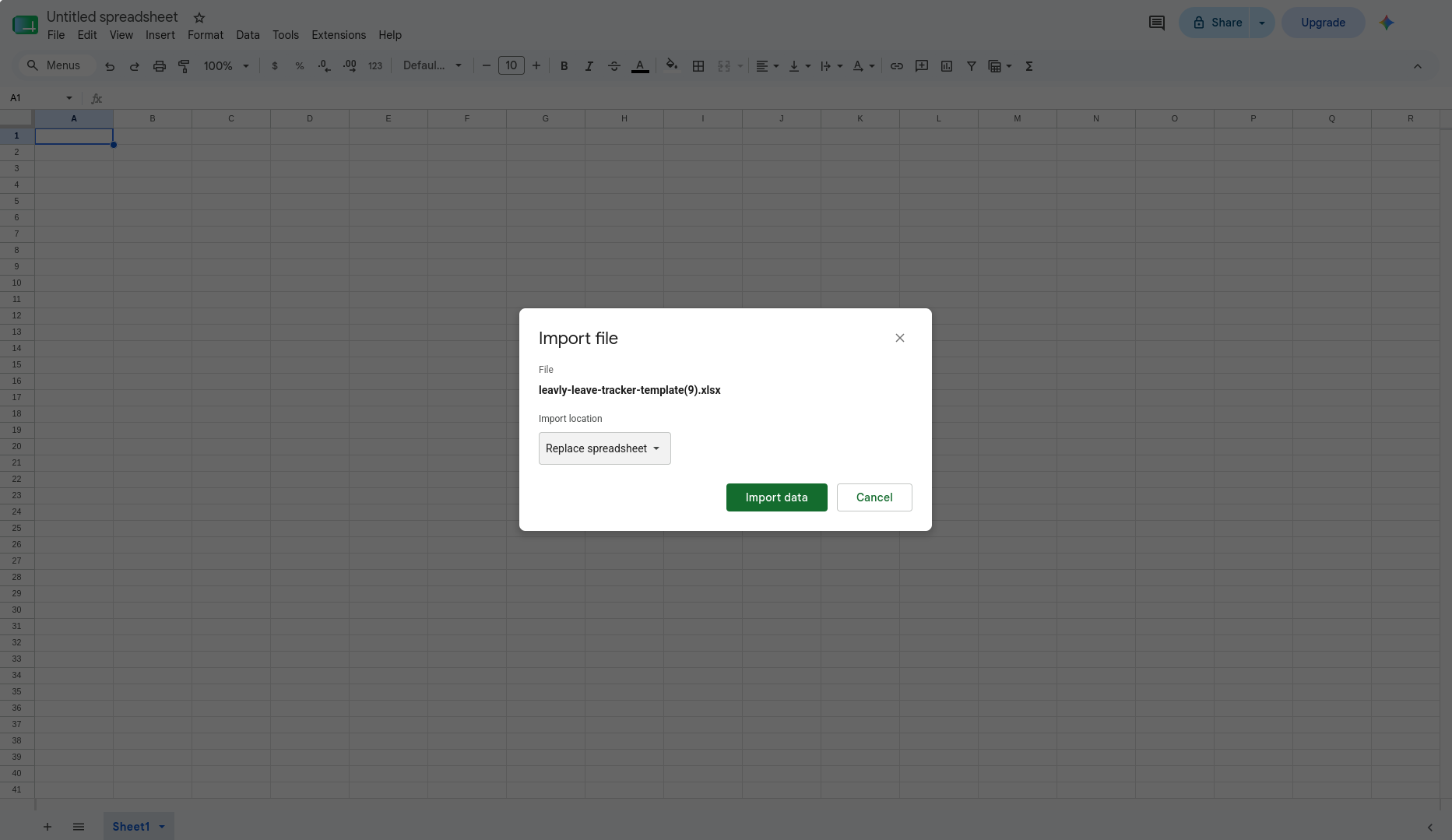
Each card shows the remaining balance at the top and a simple leave log underneath. One row per leave: the first day, the return date, the type, and who approved it. The Days column and the totals calculate themselves. Here’s what that looks like:
| First day | Return date | Leave type | Part-day hours | Days | Approved by | Note |
|---|---|---|---|---|---|---|
| 2026-02-12 | 2026-02-16 | Annual leave | 2 | Alex Morgan | Long weekend | |
| 2026-03-05 | 2026-03-06 | Sick | 1 | Alex Morgan | Flu | |
| 2026-04-01 | 2026-04-01 | Annual leave | 4 | 0.5 | Priya Patel | Half day - appointment |
Jane’s example card: 2.5 days of annual leave taken, leaving 22.5 of her 25-day allowance. Her sick day is counted separately.
How to use this leave tracker template
You type in what happened; the spreadsheet does all the counting. That’s the whole contract. Below is the complete workflow, start to finish - from getting your copy to rolling the workbook over into a new year.
1. Get your copy
Working in Excel or LibreOffice? Download the .xlsx file - no macros, no sign-up. Prefer Google Sheets? Make a copy in Google Sheets and a ready-to-use copy lands straight in your own Google Drive. Either way, start on the Instructions tab - it’s a one-page version of this guide.
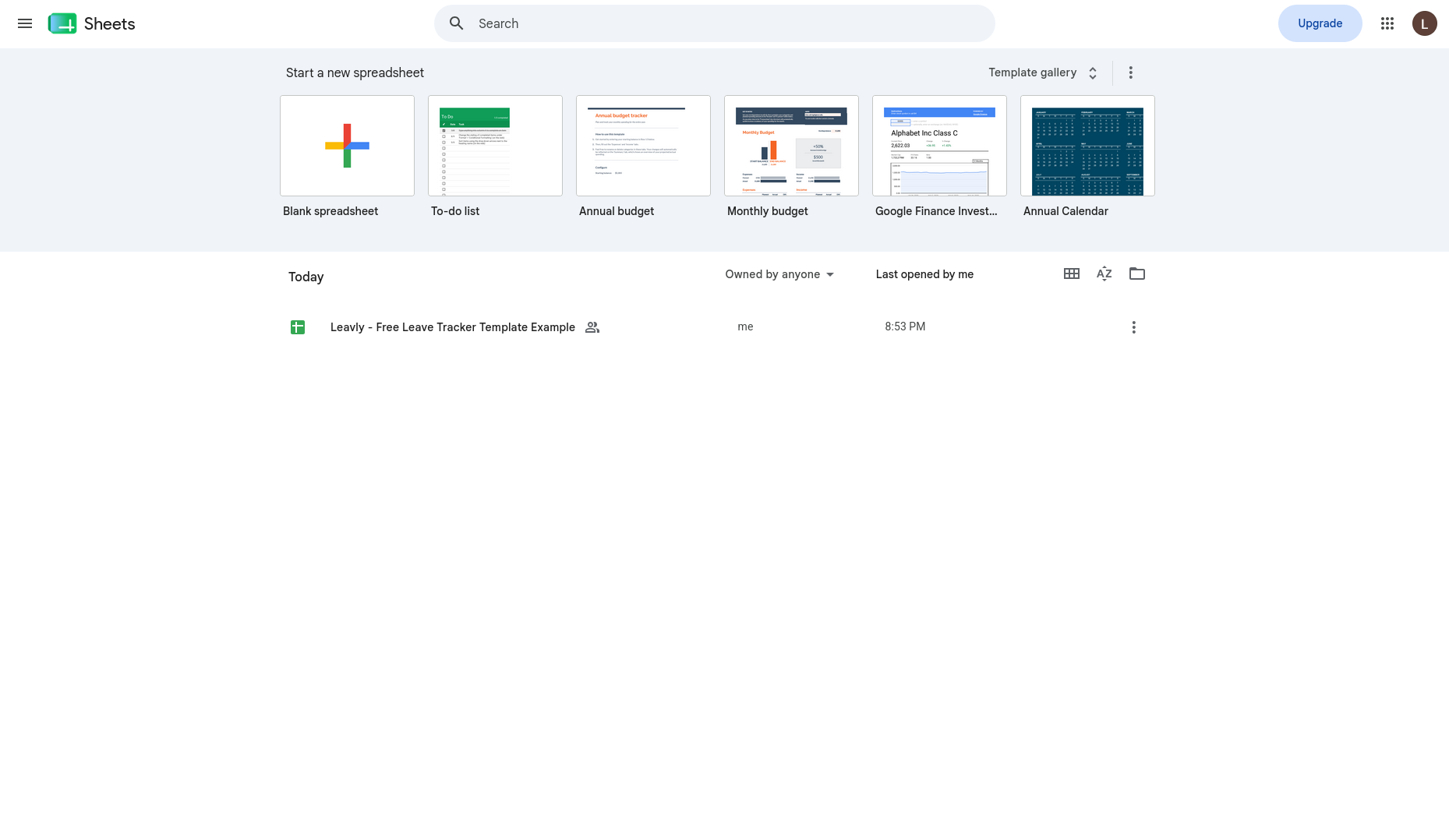
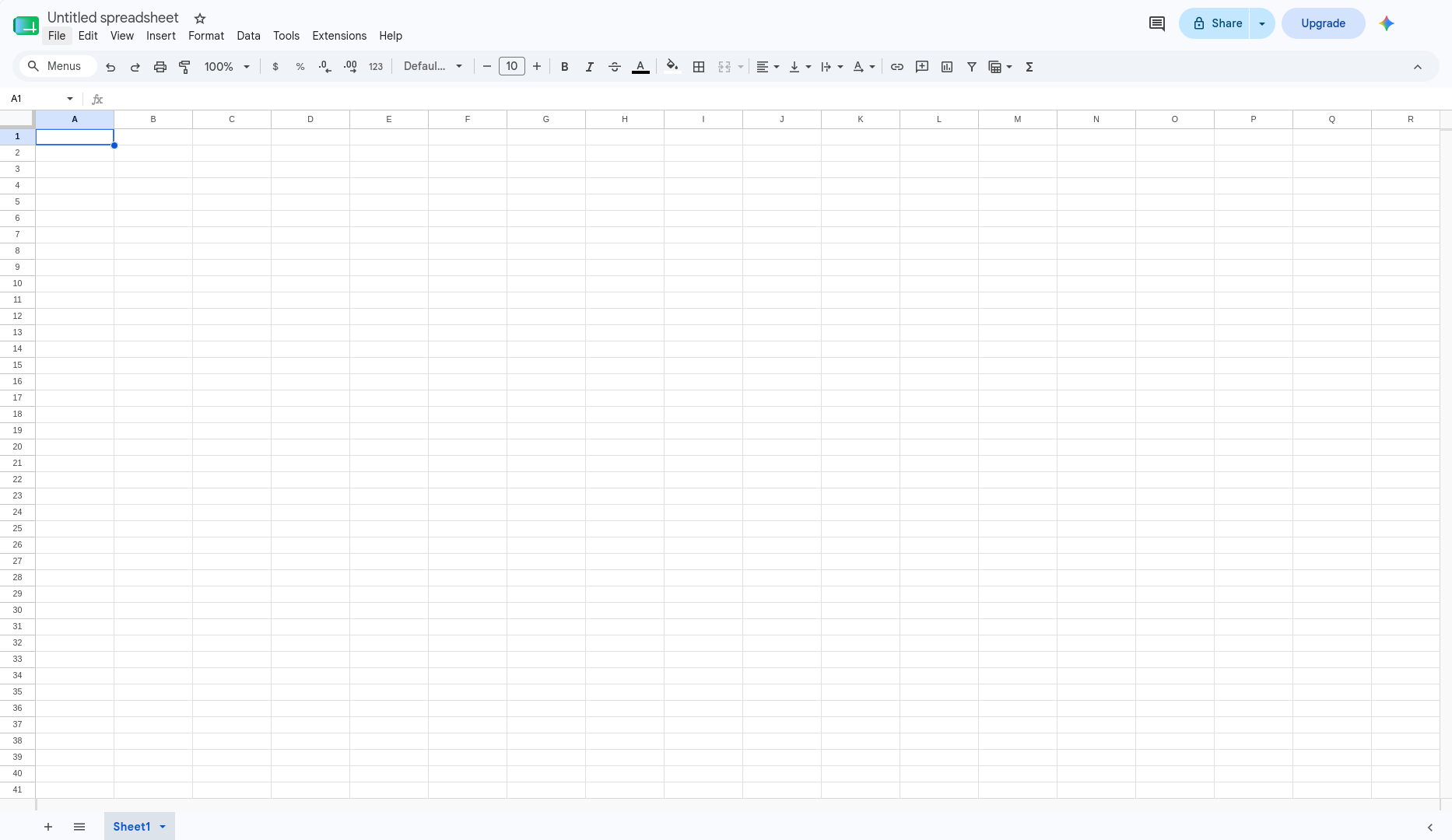
Importing the .xlsx by hand instead? In Google Sheets, create a blank spreadsheet, then choose File → Import → Upload, select the downloaded file, and pick “Replace spreadsheet”. Every tab, formula, and total carries over - nothing to rebuild.
2. Create a card for each person
Right-click the New employee tab and choose “Duplicate” (Google Sheets) or “Move or Copy” → “Create a copy” (Excel), then rename the new tab to the person’s name. Fill in their details: name, email, position, department, the date they joined the team, their annual allowance in days (25 by default), any days carried over from last year, and how many hours count as one working day (8 by default). Finally, type the tab name into the Team overview tab so they show up there. At the top of the card, set the period the sheet covers - a calendar year like January - December 2026, or your company’s leave year, say March 2026 - March 2027.
3. Log each leave as one row
When someone takes time off, add a row to their leave log: the first day of the leave, the return date (their first day back at work), the leave type from the dropdown, and who approved it. That’s it - the Days column counts the working days in between for you, skipping weekends and any public holidays you’ve listed on the Holidays tab. A week off from Monday, returning the next Monday, is 5 days.
For part of a day, use the same date for both and fill in Part-day hours: 4 for a half day, 2 for a short appointment. The Days column divides the hours by that person’s working day, so a 2-hour appointment counts as exactly 0.25 days - the place hand-rolled leave spreadsheets most often go wrong.
4. Read balances at a glance
The strip at the top of each card always shows days remaining (in green), annual leave taken, sick days, and other leave for the period. The rule is simple: days remaining = annual allowance + carried over − annual leave taken. Only annual leave is deducted - sick, personal, parental and unpaid leave each get counted, but they never eat into someone’s holiday. Change an allowance and every number adjusts instantly.
Want the whole team at once? The Team overview tab lists everyone’s remaining days side by side, pulled live from each card - handy when you’re checking who still has leave left before the end of the year.
5. Roll over at the end of the year
When the period ends, save a copy of the workbook for the new year, clear each leave log, and update each card’s period and the Holidays tab. If someone has unused days, enter them in Carried over (days) - 25 days plus 3 carried over simply becomes 28 remaining. That’s the entire yearly maintenance.
Tell me how you use it
This template keeps getting better because people tell me what their team actually needs - the approver column and the first-day/return-date log both started as user suggestions. If you’re using it and something feels missing or awkward, I’m more than happy to hear about it: drop me a note with how you use the template and what you’d improve.
When a spreadsheet stops being enough
An honest note to finish. For a small team, this template is genuinely all you need - that’s why I made it. But spreadsheets have no workflow: requests still arrive by email or chat, someone has to remember to type them in, and nothing warns you when two people in the same role book the same week off. There’s one file, so edits collide; there’s no history of who approved what; and every January someone rebuilds it by hand.
If that day comes, Leavly does the same job automatically: employees request time off, managers approve in one click, balances and overlaps take care of themselves - and you can try it free for 14 days.
Common questions
These are the questions readers ask me most often about the template. If yours isn’t answered here, send it over and I’ll add it.